Fast Android File Transfer on macOS Using ADB and better-adb-sync

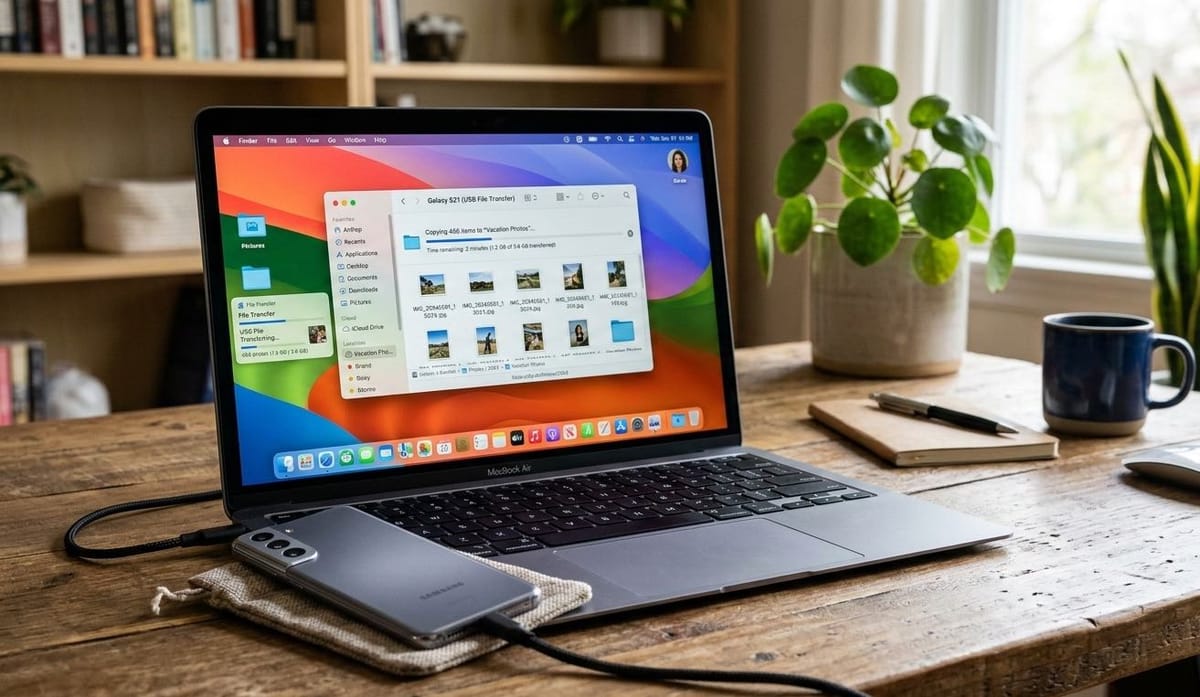
Transferring files from an Android phone to a Mac should be simple, but in practice it can be surprisingly awkward. Many tools rely on Wi-Fi transfers, proprietary software, or limited free versions that restrict functionality. If you regularly move photos, videos, or other large files, these limitations quickly become frustrating.
Fortunately, Android includes powerful developer tools that allow you to transfer files quickly and reliably using a USB cable. By combining ADB (Android Debug Bridge) with a lightweight open-source utility called better-adb-sync, you can create a fast and efficient workflow for syncing files between Android and macOS.
This approach avoids slow wireless transfers, eliminates the need for proprietary software, and allows you to copy only new or changed files, saving time and bandwidth. For developers, technical users, or anyone who prefers efficient tools over graphical utilities, it’s an excellent solution.
Why File Transfers Between Android and macOS Can Be Frustrating
If you’ve used Android with a Mac for any length of time, you’ve likely encountered the limitations of common file transfer solutions.
My previous workflow used AndFTP to copy files from my phone to my Mac via SFTP. While this worked, the transfers occurred over Wi-Fi. Wireless transfers are inherently slower than USB connections, especially when copying large photo libraries or video files.
Even on modern wireless networks, transferring gigabytes of images can take significantly longer than using a physical cable. A basic USB 2.0 connection often outperforms Wi-Fi when copying large files.
There are also macOS applications designed to integrate Android devices with Finder so that they appear like external storage devices. Examples include:
- MacDroid
- Commander One
These applications provide convenient graphical interfaces and Finder integration. However, their free versions often come with limitations such as restricted functionality, device limits, or periodic upgrade prompts. While these tools can be worthwhile if you prefer a graphical workflow, developers often prefer solutions that are fully scriptable and unrestricted.
Fortunately, Android already provides exactly this capability through ADB.
What Is ADB (Android Debug Bridge)?
ADB is a command-line tool included in the Android SDK Platform Tools. It allows developers to communicate directly with Android devices over USB or network connections.
ADB can perform many tasks, including:
- Installing and debugging applications
- Accessing device logs
- Executing shell commands
- Transferring files between devices
For file transfers, ADB provides commands such as adb push and adb pull.
For example, you can copy all photos from an Android device to your Mac using:
adb pull /sdcard/DCIM ~/Pictures/android-backup
This command copies the entire directory containing your photos and videos to a local folder.
While this works well for a one-time backup, it has a major limitation.
ADB cannot natively perform incremental directory synchronization.
Each time you run adb pull, the tool attempts to copy all files again, even if most of them already exist on your Mac. When dealing with thousands of photos or videos, this quickly becomes inefficient.
The Solution: better-adb-sync
To solve this limitation, you can use better-adb-sync, an open-source tool designed to bring rsync-style synchronization to ADB.
Project repository:
https://github.com/rom1v/better-adb-sync
Instead of blindly copying everything, better-adb-sync compares file timestamps and sizes before transferring data. Only new or modified files are copied.
This makes it ideal for workflows such as:
- regularly backing up phone photos
- syncing videos from your device
- transferring large media libraries
- automating phone backups with scripts
For many users, it effectively transforms ADB into a fast incremental backup tool for Android devices.
Installing better-adb-sync on macOS
The easiest way to install better-adb-sync is using pipx, a tool that installs Python applications in isolated environments.
First install pipx using Homebrew:
brew install pipx
pipx ensurepath
Then install better-adb-sync:
pipx install better-adb-sync
After installation, a new command becomes available in your terminal:
adbsync
Preparing Your Android Device
Before transferring files, ensure that USB debugging is enabled on your Android device.
To enable this feature:
- Open Settings
- Navigate to About phone
- Tap Build number multiple times until developer mode is enabled
- Go to Developer options
- Enable USB debugging
Once enabled, connect your phone to your Mac using a USB cable.
You can confirm the connection by running:
adb devices
If everything is working correctly, your device should appear in the list of connected devices.
Syncing Android Photos to Your Mac
Now you can use better-adb-sync to copy photos from your phone to your Mac.
For example:
adbsync --pull /sdcard/DCIM ~/Pictures/android-backup
This command performs an incremental sync between the Android device and your local directory.
During the process, better-adb-sync will:
- scan both directories
- compare file sizes and timestamps
- transfer only files that are missing or updated
Existing files are skipped automatically, which makes repeated backups extremely fast.
Creating an Exact Mirror of Your Files
If you want your local folder to exactly match the contents of the device directory, you can add the --delete flag.
adbsync --pull --delete /sdcard/DCIM ~/Pictures/android-backup
This option removes local files that no longer exist on the phone, ensuring both directories remain identical.
Be cautious when using this option, as it will delete files from your local folder.
Automating Android Backups
One of the major advantages of using command-line tools like ADB is automation.
You can create a simple shell script that runs whenever your device is connected:
#!/bin/bash
DEST=~/Pictures/android-backup
adb start-server
adbsync --pull /sdcard/DCIM $DEST
This script can easily be integrated into:
- macOS Automator workflows
- scheduled backup scripts
- development workflows
For users who frequently connect their phone to their Mac, automation can turn this process into a nearly invisible backup system.
Why USB File Transfer Is Still Faster Than Wi-Fi
Wireless file transfer tools are convenient, but they introduce several limitations:
- network congestion
- signal interference
- slower transfer speeds
- increased latency
USB connections avoid these issues entirely. Even older USB standards often outperform wireless transfers when copying large datasets such as photo libraries or 4K video recordings.
For this reason, using ADB over USB is often the fastest way to transfer large amounts of data from Android to macOS.
Advantages of Using better-adb-sync
Combining ADB with better-adb-sync offers several benefits compared with traditional tools:
- Faster transfers using USB rather than Wi-Fi
- Incremental syncing, similar to rsync
- No proprietary software or subscriptions
- Fully scriptable and automatable
- Works with multiple devices
For developers and technical users, this approach provides a powerful and flexible alternative to graphical utilities.
When Finder Integration Tools Still Make Sense
Graphical tools still have their place. If you prefer a drag-and-drop interface, applications like MacDroid or Commander One can provide a smoother experience for casual file browsing.
However, if your goal is efficient backups, automation, or large transfers, command-line tools tend to offer better performance and flexibility.
In many cases, using ADB with better-adb-sync provides a workflow that is faster, simpler, and more reliable than traditional Android file transfer utilities on macOS.
Final Thoughts
Despite Android’s openness, file transfer between Android and macOS is often less polished than the tight ecosystem integration seen between Apple devices.
However, by using tools already built into the Android platform, it’s possible to create a workflow that is both efficient and reliable.
Combining ADB with better-adb-sync provides:
- fast USB transfers
- incremental syncing
- scriptable automation
- a completely free and open-source solution
For developers and power users, this approach is often the most effective way to regularly sync photos, videos, and files from Android devices to macOS.
Footnote: Another Essential Android Tool for macOS
Another extremely useful Android utility worth mentioning is scrcpy.
scrcpy allows you to mirror and control your Android device directly from your computer using ADB. The tool provides a real-time view of your phone’s screen with minimal latency and allows you to interact with the device using your keyboard and mouse.
In practice, scrcpy provides functionality similar to the seamless device integration seen between Apple devices. Just as macOS can mirror and control an iPhone through Apple’s ecosystem features, scrcpy allows Android users to achieve a comparable experience by remotely viewing and interacting with their device screen from their desktop.
For developers, testers, and power users, scrcpy is one of the most valuable tools available in the Android ecosystem and pairs perfectly with ADB-based workflows like better-adb-sync.